Posts

Showing posts with the label active directory

Group Policy - Home Folder and Active Directory Users

Image
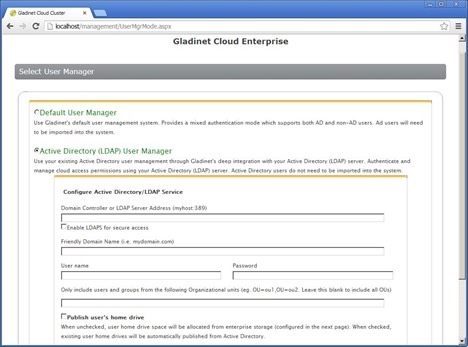
When adding users from an Active Directory (AD) connection, you can take advantage of the Home Folder setting in a user's AD Profile settings.  First you must connect your Tenant to their AD. To take advantage of this Home Folder setting, do not add the user to the Tenant before setting up the AD side . Also make sure the Group Policy settings are adjusted before adding as well. Click "Edit" and enter your Domain Controller or LDAP Server Address (myhost:389). Enter your AD admin credentials. "APPLY" these settings. Now make sure you have content for this user in a local network location so it can be connected to that user's AD properties. Now make sure your AD properties for this user are setup to take advantage of the Home Directory option. In the user's properties choose the Profile tab. Notice that I have the Profile tab active, and in the Home Folder settings for this user, I've entered a network location of their cont...

Folders in CentreStack - Attached vs CIFS

Image
Migrating your file-server shares to CentreStack can be done in a few ways. When you migrate by Attached Folder method, you get access to the files and you can add collaborators as needed and even restrict access using native CentreStack permissions settings. However, a better way--especially if you have many users and a file server with Active Directory--would be to attach shared folders using the CIFS Share method. This migrates not only the shared files and folders but the associated NTFS permissions connected to that share. I hope you found this tutorial useful. If you want more content like this, please Subscribe and click the notification bell in YouTube so that you can receive updates from our channel.

Adding Active Directory (AD) Users in CentreStack

Image
In this tutorial I demonstrate how easy it is to add Active Directory (AD) users to your CentreStack Tenant's users. I also demonstrate how to modify the credentials and create a custom ROLE that you can then assign to some of your users. http://centrestack.com/

CentreStack Team Folder with Active Directory

Image
CentreStack helps managed service providers cloudify their customer’s file server. One of the common use case is that the customer are already collaborating over network shares from the file server with Active Directory identities and NTFS permissions. One of the common use case is to add CentreStack server to the mix and expose the network shares via the CentreStack server to the cloud as team folders, while honoring the NTFS permission 100%. This video demonstrates how to setup CentreStack server for team collaboration by turning a network share in the local area network into a team folder for the cloud.

CentreStack Active Directory Integration

Image
CentreStack is a managed sync and share solution. It can be used in a multi-tenant setup to service multiple companies or multiple departments of the same company. The companies almost always have an active directory each. There are two different ways to integrate active directory. The first one is traditional LDAP connection. The second one is via Server Agent to help connect remote active directory. This video demonstrates how to connect Active Directory to CentreStack on a per-tenant basis. The next video in the blog will demonstrate connection Active Directory via Server Agent. (Server Agent is a small piece of software included in CentreStack that can install on remote file servers that are in the active directory). Here is the video for Active Directory connection via LDAP.

OpenStack EFSS (File Sync and Share) with Active Directory–Part II

Image
We discussed about OpenStack EFSS (File Sync and Share) support in this article . This article demonstrates the ability with SwiftStack OpenStack implementation and also demonstrates the ability for very big Active Directory Enterprise integration. For big enterprise, typically they have their own employee self-service portal, where employees will go to get product and services the Enterprise IT department provides. For this reason, the integration typically is done via API (Application Programming Interface). In this article, we demonstrates how to map a SwiftStack OpenStack Swift container to an Active Directory user using PowerShell.

Active Directory Multiple Email Addresses Support

Image
Gladinet Cloud Enterprise is a File Sync and Share solution. In big enterprise, people usually have multiple email addresses. There could be one main one and multiple email alias. Sometimes the email address survives merger and acquisition. For example, it is a pretty common practice in the bank industry that people have email addresses from the previous bank and the email address from the current parent bank. Sometimes the email address survives company split. The company may be splitting into two different companies and the same person may have two email addresses, one with the company before the split and one with the company after the split. Whatever the reason is, supporting multiple email addresses for file sync and share is important.  Exchange server has been supporting multiple email alias for a long time. Email received at different email alias will be consolidated into one single email inbox. Supporting multiple email addresses in file sync and share solution is also...

Multiple Active Directories in One Single Tenant

Image
As part of a series of demo videos about active directory support in Gladinet Cloud Enterprise, a file sync and share solution for private enterprises, today’s video is about how to setup multiple active directories in a tenant. In the most cases, one active directory per tenant is enough. However, in banks, they typically keep multiple directories around and these directories can be from multiple isolated forests for historic reasons. So the question is, how do you make all the users from multiple directories all on board on the file sync and share solution? Here you go, the video demonstrates how to get it done. for more information, please visit http://www.gladinet.com and check the enterprise section.

Gladinet Cloud Enterprise Active Directory Support Video

Image

Gladinet Cloud Enterprise Active Directory Support

Image
Gladinet Cloud Enterprise is a file sync and share solution. It has extensive support for Active Directory. We will have series of articles documenting the different Active Directory support scenarios. Today’s article will start from two most basic scenarios: Active Directory is local to the GCE in local area network Active Directory is remote at client’s location, over the Internet Local Active Directory Local Active Directory can be connected directly via LDAP or LDAP with security settings. In this case,  it is very easy to set up. From the web portal, log in as tenant administrator, go to the management console and then Advanced->Active Directory to set it up.   Remote Active Directory When  Active Directory is at a remote location, customers typically will be reluctant to open firewall for the LDAP access over the Internet. In this case, we recommend installing the Server Agent and the Server Agent will proxy out the Active Directory connection and also ...

Group Share with Active Directory and In the Cloud Video

Image
Here is the video for the Group Share with Active Directory, in the Cloud blog.   For more information, visit http://www.gladinet.com and visit the enterprise section.

Group Share with Active Directory, In the Cloud

Image
So what is new? That may be the first question. Group share is not new, Active Directory is not new either. With a Microsoft Active Directory domain and file server, users can do group share and collaboration in a local area network already. The new stuff is that now you can do it in the cloud, without VPN. Also you can extend the access method to web browser and mobile phones, in addition to the traditional desktops, PC and Mac. Lab Setup To show how it is done, we have a lab setup with one Gladinet Cloud Enterprise Server, One Active Directory Server and One Windows File Server. For demonstration purpose, the Active Directory Server and the File Server can co-exist on the same Windows 2012 server. As shown below, Gladinet Cloud Enterprise is running at “Windows 2012 R2 Gladinet (11)”, which it will have a public IP Address and DNS name. The Active Directory and File Server are running at the “Windows 2012 R2 AD (10)”. This Active Directory server can be behind the second firewa...

Multiple Active Directory Forests Support

Image
Gladinet Cloud Enterprise is a private Enterprise file sync, share and collaboration solution. When it comes to enterprise solution, Active Directory support is a must-have feature. In the past, Gladinet Cloud Enterprise supports multiple active directories from one single forest. For example, you can point to the root domain such as ACME.com and all the users from us.ACME.com, uk.ACME.com, apec.ACME.com are all available to the file sync and share solution here. Enterprises’ active directory infrastructure can get complicated. For example, through merger and acquisition, the enterprise may have multiple active directories all co-exist at the same time, while these active directories are all independent. Now Gladinet Cloud Enterprise adds the feature to support multiple independent active directory forests. Here is a quick How-To guide on how to enable the multiple active directory forests support. Enable the Multiple Domain Support Login as a cluster admin and check the option ‘E...

OpenStack EFSS (File Sync and Share) Solution with Active Directory

Image
The previous two sessions covers the OpenStack Swift based EFSS (Enterprise File Sync and Share) solution without the Active Directory integration. This video shows the same EFSS solution based on OpenStack Swift and Active Directory, together with a single-tenant Enterprise Edition of Gladinet Cloud Enterprise. Users from active directory has their home directories from OpenStack Swift containers and can access the files over web browser and desktop clients.

Gladinet Cloud Enterprise Multiple Active Directory Support

Image
As Gladinet Cloud Enterprise got adopted more and more into Enterprise, we have seen bigger and bigger Active Directory setups that we need to support. The following video demonstrates multi-domain AD forest support. The goal is to support big multi-national corporations with multiple Active Directories and with 200K+ users.

Online Access to Your Active Directory Home Directory

Image
In a local area network, the Active Directory Home Folder setting is a very convenient feature from Windows. The domain admin can set your home folder and map it to a drive letter. After that, you can roam around in local area network. Wherever you login, the home directory always following you, showing up as the drive letter on your Windows Desktop or Laptops. Now, what if you want to extend that home folder feature to a more modernized way of accessing. For example, you want to access your home folder natively via a HTML5 web browser; what if you want to access your home folder from iOS and Android devices. You are familiar with online services such as dropbox and box and you wish to marry your online storage features with your Active Directory home folder. Gladinet Cloud Enterprise is the solution that can wrap the modernized online storage accessing methods around your Active Directory home folder and expose that to web browser access, Wide-Area-Network access and iOS/Android mob...

Gladinet Cloud Enterprise with Active Directory

Image
Gladinet Cloud Enterprise brings web browser access, mobile device access, online collaboration and file sharing capabilities to Windows Servers and the file server shares behind it. One of the most important feature is Active Directory integration. Not only does customers need Active Directory users integration so AD users can access the Gladinet Cloud Enterprise, they also want to access the file server shares natively with the AD permissions. Gladinet Cloud Enterprise provides this important Active Directory integration feature, as shown in the video below.

Private Sync & Share with Active Directory

Image
Many schools have certain regulations about where the files can be stored. Most of the time, it can only be stored inside school-owned facility and most likely, stored on-premise. Faculties and students are also having their home directories in a traditional Windows File Server way, meaning that they log on to a campus computer and there is a v: drive or a drive letter that is pointing to the user’s home directory, typically stored as a property inside the Active Directory. In the meanwhile, you are also seeing Dropbox, Google Drive and SkyDrive, bringing the sync & share use cases to students. As the CIO of the school, you are looking for a similar sync and share solution that can work directly with on-premise storage and active directory. The goal is simple, you want to give users the convenience of a sync and share solution, and also, meeting school regulations. Gladinet Cloud Enterprise and Gladinet Cloud Enterprise for Service Provider are the two products that can help.

Cloud Storage for Active Directory Users

Image
As a continued discussion from previous blog – Migrate your file server to the cloud , this article discuss how to migrate active directory users to the cloud as well. When you have an existing file server that you are migrating to cloud storage, in a hybrid access mode, you would like to keep the active directory users too. Hybrid mode means the local file server and cloud storage are in sync, allowing you to both accessing the local file server the old way, while accessing the same file server content from the cloud in the new way. When you are accessing the file server the old way, the user identity is validated by active directory. When you are accessing the file server from the cloud, you would prefer the same active directory user allowed to access. This is the background context of the article. Basic Setup The basic setup is a Gladinet Cloud Team account and a Gladinet Cloud Server installed. Gladinet Cloud Server is part of the Team account. As long as you have a team acco...