Posts

Showing posts with the label Cloud Server

The Tipping Point for Cloud Storage Migration

Most businesses have heard of cloud storage but haven’t started taking any action towards cloud storage migration. Many CIOs, on one hand are following closely the cloud computing development, on the other hand, are complacent about the existing IT infrastructure and try to avoid disruption to daily operation. If it ain’t broke, don’t fix it. The Disruption Here is a story about how the cloud storage migration happens. Joe is the CIO of a real estate company. A couple weeks ago, the company tape backup was broken. It was quoted around $1800 to get it fixed. So a disrupted event happened. Joe was following cloud storage solutions closely. Since he needs to do something about the backup, why not switch to a cloud storage based solution for backup. As Joe went further down the path of finding a solution, he found out that most of the cloud storage solutions have sharing and team collaboration features. Since cloud storage solution offers that, and Joe has two company sites to taken ca...

Online Access to File Server

Image
When speaking about file server, normally it refers to Windows File Server such as Windows 2003 or Windows 2008. People got used to accessing the file server from the “Map Network Drive …” command in Windows XP or Windows 7 within a local area network. This is widely used in businesses as the Microsoft Network Share. With the VPN (Virtual Private Network), the access of the Windows File Server can be extended to outside of business premise, such as from home. The method of access is the same. You would right click on the Computer and select “Map network drive …” Now. Web browser technology is getting better; mobile devices are getting smarter; cloud storage and cloud based services are getting more popular. It is time to ask the question: Can I access my file server, such as creating folders, upload and download documents from web browsers and mobile devices?   Can I access the file server from desktop client and from file servers in other city, without using a VPN? With Gladin...

File Server Content in the Cloud

Image
Migrating an existing file server to the cloud is an important use case. This article talks about the Gladinet Cloud Server solution that can help migrating your file server content to cloud seamlessly. The Challenges Public cloud storage solutions have become increasingly convenient as they enable anywhere access to files and folders for web browsers, desktops and mobile devices, with sync and share capabilities. It is also very easy for team members to collaborate over the Internet. However, your file server sitting in the office local area network (LAN) still provides the key file storage functionality and team collaboration functionality through network shares. You would like to adopt cloud storage technology and the new use cases it enables. But simply, you can't get rid of your file server. Additionally, you want to make your file server easily replaceable but it just has too much data to have an easy solution. The situation is even more complicated when you have multipl...

Mobile Access to Your Enterprise File Server

Image
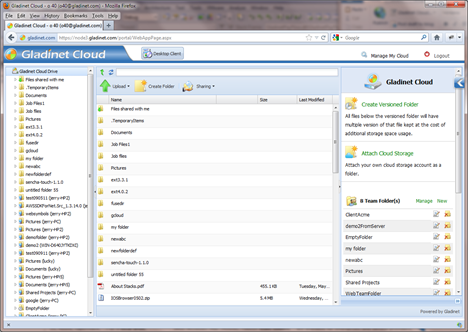
Mobile trend and the cloud computing trend are somehow connected. On one hand, we are seeing companies seeking cloud as a way to provide new access and backup methods. On the other hand, they are also looking for ways to enable mobile device access to their enterprise file server. This article focuses on the mobile access side, while documenting an implementation that does both mobile access and seamless cloud migration for your file server. The basic idea is that you attach your file server folders to your Gladinet team account. Once it is attached, it is like a distributed file system over the cloud. After that you can use your iOS device, Android device or Playbook device to access your file server through your Gladinet team account. Also in the background, the file server folder content is migrated to your Gladinet team account. Now let’s get started.

Accessing Your File Server from Cloud

Image
Here is another use case keeps coming up from customers using Gladinet Cloud. As one potential customer asked: “We search for a solution for our team. We have a file server with Active Directory for our projects, with a team of users travelling around. We need the files and folders accessible for team members outside of office, while other people working on the same project can continue to access files and folders from within the office.” Above is the main use case requirement, then he follows with the second requirement: “We don’t want the work to be solely in Web Interface, nor do we want applications to provide sync after users come back into office.” The second requirement can be translated into:   Please provide real time direct access for both users in the office and users outside office. This usually requires a VPN like solution so remote user can login to the file server through VPN.  However, in the cloud era, there is a better and cheaper solution, with more...

Cloud-Based Distributed File System

Image
Distributed File System (DFS) in the context of Microsoft Windows is a very familiar feature for Windows Server administrators. As a summary, it can organize many distributed SMB file shares into a single DFS namespace (DFS root), providing location transparency and redundancy. In the cloud storage era, we can extend the distributed file system concept to cloud storage. With cloud storage, it is possible to unify your multiple file servers from multiple sites into one single namespace. Gladinet Cloud is one such namespace that can unify all your servers from different places and provide cloud-storage replication for redundancy. If you were a Windows administrator, you will start building your DFS at creating a DFS root first, then you will bring in different SMB network shares into your DFS tree. In Gladinet, you will start by creating a Gladinet Team Edition account, with default Gladinet Storage, or plugin your own cloud storage account, such as Amazon S3, Rackspace Cloud Files an...

Use Cloud Storage to Unify Multi-Site File Structure

Image
Cloud Storage is great for IT administrators trying to maintain file structure across multiple sites. File Structure from one site can be attached to the cloud so it can be viewed and used from the other sites. This is a use case we learned from a Gladinet customer. Gladinet Cloud and Gladinet Cloud Server helpped to reduce the file structure on 3 different sites down to one. This article will review this use case and the basic setup. Assuming you are in the role of an IT admin, managing file servers from 3 different sites and your job is to make sure all 3 servers are available to all 3 sites. Gladinet Team Account First you will need a Gladinet Team account. When you log into your Gladinet Cloud account from the web browser, you will see the root of your “Gladinet Cloud Drive”, which is also your global namespace. Later when you have folders attached from your 3 file servers, they will show up in this namespace. Conceptually, this is similar to the DFS (distributed file system) ...

Local File Server + Cloud-Based Team Folder

Image
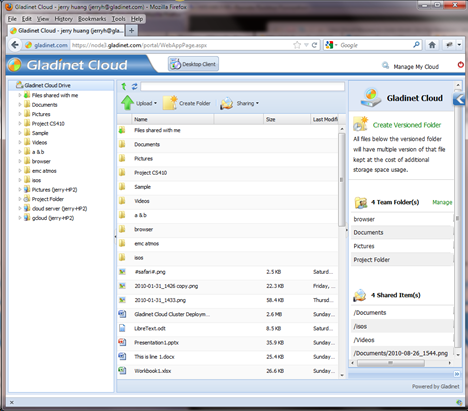
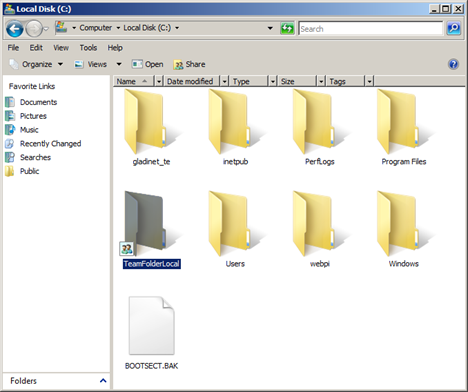
Local File Server for team collaboration is a very familiar use case . Typically a local IT administrator set up a file server in a Local Area Network(LAN) environment, such  as in a branch office. The whole office then use network shares to share files. For example, below is a picture of a Shared folder in Windows File Server 2008. The local folder’s name is TeamFolderLocal and it is published as a network share. Cloud-based team folder is also a very familiar use case . In Gladinet Cloud, the administrator can setup a team folder so anyone that has assigned read/write permission can access the team folder. Below is a picture of a team folder inside web browser. Both use cases are pretty common. Now, what if the two use cases can be merged into one? If you have a locally shared network share, can you make it into a team folder shared inside web browser? On the other hand, if you have a team folder inside web browser, can you make it into a network share on file server? Gladi...

Cloud Storage for Active Directory Users

Image
As a continued discussion from previous blog – Migrate your file server to the cloud , this article discuss how to migrate active directory users to the cloud as well. When you have an existing file server that you are migrating to cloud storage, in a hybrid access mode, you would like to keep the active directory users too. Hybrid mode means the local file server and cloud storage are in sync, allowing you to both accessing the local file server the old way, while accessing the same file server content from the cloud in the new way. When you are accessing the file server the old way, the user identity is validated by active directory. When you are accessing the file server from the cloud, you would prefer the same active directory user allowed to access. This is the background context of the article. Basic Setup The basic setup is a Gladinet Cloud Team account and a Gladinet Cloud Server installed. Gladinet Cloud Server is part of the Team account. As long as you have a team acco...

Migrate Your File Server to the Cloud

Image
When you have a file server and you want to consider moving to the cloud with cloud storage, it is not as simple as moving a house from point A to point B. You need business continuity because the file server is the collaboration point that needs to continue to run. You don’t want a full two-way sync solution between your file server and cloud storage either, because the volume on the file server is usually bigger than the data on a consumer PC. So when a two-way sync solution is popular for consumer, it may not be as good for a file server in small business because of bandwidth consumption. You need a hybrid solution. In Gladinet’s term, you will install Gladinet Cloud Server on your file server and attach folders to the cloud. If you are familiar with two-way sync solutions, you can think of attaching folder to the cloud as an optimized two-way sync solution for file server, with on-demand random access and background sync. Now let’s get started.

Access HP Cloud Storage from a Local File Server

Image
Gladinet Cloud fully support HP Cloud Storage. This video demonstrates the support from the Gladinet Cloud Server. The use case is very simple. You have a file server that over a period of time you would like to migrate over to the cloud, and preferably HP Cloud Storage. You would like to connect the file server with the HP cloud storage so your local users can still use the file server through regular network shares, while the file server is in turn doing seamless migration to the HP Cloud Storage. In between migration, you will have web browser access, mobile device access to the same file server while the content is migrating to the cloud. Related Posts Access and Backup to HP Cloud Storage Gladinet Release Support for HP Cloud Storage

Getting Started with AT&T Synaptic Storage Video

Image
Here is a YouTube HD video for getting started with AT&T Synaptic Storage and Gladinet Cloud Server . It shows how to connect from a Windows 2008 Server to Synaptic Storage and share the Synaptic Storage as a network share to a group of users. (Best viewed with 1280x720 HD option) Related Posts Getting Started with AT&T Synaptic Storage

Getting Started with AT&T Synaptic Storage

Image
This article shows how Gladinet Cloud Server makes it easy to access AT&T Synaptic Storage. Before you begin, we recommend that you have your credentials for AT&T Synaptic Storage. This will be done in four steps: 1.    Download and Install Gladinet Cloud Server. 2.    Create a Gladinet Account. 3.    Attach AT&T Synaptic Storage to Gladinet Cloud Server. 4.    Publish the attached storage for use on your network. Download and Install Gladinet Cloud Server Click here to start the download: http://gcloud.gladinet.com/p/download_cloud_server.htm . Select the 32-bit or 64-bit download based on your system and after the download completes, select “Run”.

Introducing Gladinet Cloud Server

Image
Gladinet Cloud Server is Gladinet CloudAFS combined with Gladinet Cloud for Teams . On one hand, it is a file server that allows you to mount different cloud storage services such as Amazon S3 , Windows Azure , Google Storage , EMC Atmos into a Windows File Server. On the other hand, it allows you to have default Gladinet Cloud so it works out of the box (instead of waiting for you to mount any cloud storage services before it is fully functional). This is a step forward to have a complete cloud access solution for customers. Gladinet Cloud is based on Amazon S3. By delivering it as default storage to customers, Gladinet makes it simpler for users to use the cloud. Installation Gladinet Cloud Server installs through a standard Windows MSI package.