Posts

Showing posts with the label Team Cloud

Enable Advanced Settings When Publishing a Team Folder

Image
CentreStack is an enterprise File Sync, Share, & Collaboration platform. It can be deployed 100% On-Premise to provide access to shares on file servers. Once the shares are attached they can be published as team folders. Team folder is kind of like the traditional network share, except that the team folder is for the Internet, while the network share is for LAN (Local Area Network). There are also some advanced settings for a team folder which are visible when you enable the setting in group policy. This video demonstrates how to enable the advanced settings for a team folder.

Check-out, Check-in, and File-Locking in the Cloud

Image
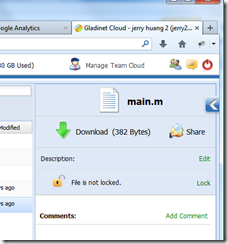
To continue our last discussion of Team Collaboration in the Cloud, this article discuss the check-out, check-in and file locking. With the Gladinet Cloud client, team users get a drive letter on the desktop, representing the files and folders in the cloud. Team users can double click on a file to initiate editing of the documentation. If the editing happens in a team folder, there is a possibility of users opening and editing documents in a conflicting way. In this scenario, it will be good to be able to check out the file, make the modification and then check-in the file. During check-out and check-in, the file will be locked for editing. As shown below, when you right click on a file inside a team folder, you will see the menu to check out the file. Check Out

Team Collaboration Over the Cloud

Image
We are all familiar with collaboration in a local area network (LAN) environment, which was fulfilled by a Windows File Server or some device that provides a network share. This is a device in the office that people can all map a network drive to the file server share and collaborate within the office. With the Internet expands and cloud storage technology penetrates more and more into user’s daily work, it will be desirable to collaborate over the cloud, with various kinds of devices, such as the usual Windows based devices, Mac devices, iOS devices and Android devices. Before it happens, most users need clear answers to the following features. File Locking When it comes to collaboration, file locking is a must have feature. Gladinet Cloud provides two places for you to lock files for editing. First place is inside the web portal, you can click on a file and lock the file.

Folder Permission in the Cloud

Image
Cloud Storage is good for team collaboration. Just like in the LAN environment, you have a NAS device that everyone local to the network can share. Or like a Windows File Server that everyone local to the network can share and the file server can setup folder permission inside the network share. So team collaboration comes with folder permission. When team collaboration is done through cloud storage, folder permission will need to be implemented with the team collaboration solution. This article discuss Gladinet Cloud Team Edition and the related team folder and folder permission features.

Accessing Your File Server from Cloud

Image
Here is another use case keeps coming up from customers using Gladinet Cloud. As one potential customer asked: “We search for a solution for our team. We have a file server with Active Directory for our projects, with a team of users travelling around. We need the files and folders accessible for team members outside of office, while other people working on the same project can continue to access files and folders from within the office.” Above is the main use case requirement, then he follows with the second requirement: “We don’t want the work to be solely in Web Interface, nor do we want applications to provide sync after users come back into office.” The second requirement can be translated into:   Please provide real time direct access for both users in the office and users outside office. This usually requires a VPN like solution so remote user can login to the file server through VPN.  However, in the cloud era, there is a better and cheaper solution, with more...

Team File Sync & Share Solution for OpenStack

Image
Earlier this month, Rackspace announced the release of Rackspace Private Cloud Software, powered by OpenStack and code-named Alamo. The new offering is designed to make it easy for organizations to install, test and run a multi-node OpenStack-based private cloud environment. It is an offering designed for services providers and enterprises. OpenStack has two components, compute and object storage. This article focuses on the object storage, code named swift, as it is related to building a team oriented file and folder sync and share solution, working together with the Rackspace Private Cloud Software. File Sync & Share solutions are pretty common on the public cloud as one of the most common application of cloud storage. For example, Box and Dropbox are the most successful ones promoting file sync and share solution over public cloud. Many service providers will now look to OpenStack and also look for a dropbox-like or a box-like solution for their own private cloud,  OpenSta...

Android Client for OS 2.3+ Available in Google Play

Image
Two weeks ago, Gladinet Cloud Team Client for Android OS 4.0/4.1 was released to Google Play market store. This week, same android client is ready for OS 2.3+ (API 8 and up). Next step will be to port this android 2.3 based app to Blackberry Playbook. If you bring up Google Play market app from your Android 2.3+ devices, you can find Gladinet Cloud in the Google Play store.  

File Sync and Share among Your Distributed Offices

Image
Recently, another potential customer request came in. The customer has 3 offices located in different regions, all in the US. They have a need to share Microsoft Office files such as Word, Excel, Power Point files from each office into a central location to store all the master files. They need to be able to lock files so people from different offices don’t overwrite into each other’s change. They need to have version history of the files in case files are accidentally deleted.  They also need to integrate the solution with a mapped network drive in Windows Explorer. The good news is Gladinet Cloud for Teams has all those required features. We have seen this repeating theme keeps coming up, which also helped shape the current version of the Gladinet Cloud for Teams. Gladinet cloud for teams is made exactly for this purpose – file sync and share among your distributed offices. To start, first you will need to acquire a Gladinet Cloud for team account from www.gladint.com . After ...

Local File Server + Cloud-Based Team Folder

Image
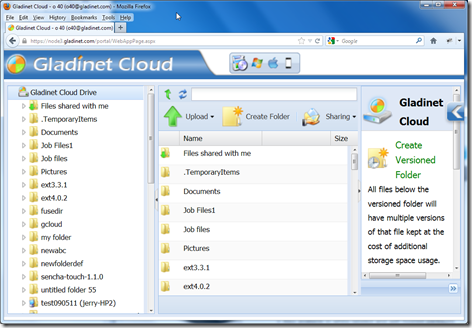
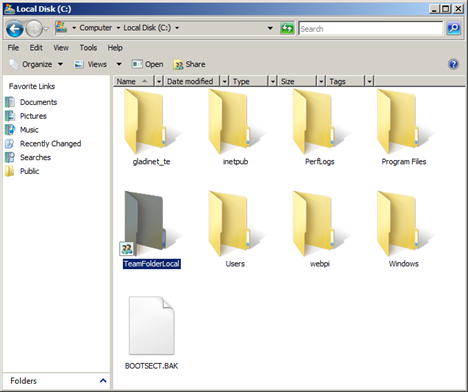
Local File Server for team collaboration is a very familiar use case . Typically a local IT administrator set up a file server in a Local Area Network(LAN) environment, such  as in a branch office. The whole office then use network shares to share files. For example, below is a picture of a Shared folder in Windows File Server 2008. The local folder’s name is TeamFolderLocal and it is published as a network share. Cloud-based team folder is also a very familiar use case . In Gladinet Cloud, the administrator can setup a team folder so anyone that has assigned read/write permission can access the team folder. Below is a picture of a team folder inside web browser. Both use cases are pretty common. Now, what if the two use cases can be merged into one? If you have a locally shared network share, can you make it into a team folder shared inside web browser? On the other hand, if you have a team folder inside web browser, can you make it into a network share on file server? Gladi...

Team Folder with IBM SmartCloud Object Storage

Image
Last article discussed several access methods you can have with IBM SmartCloud Object Storage. This article discusses how to have a team folder in the IBM SmartCloud Object Storage so everyone can share. Assuming you already have an IBM SmartCloud Object Storage account and a Gladinet Team account and you are already checking out the different access clients, such as web portal, desktop drive, file server volume and mobile app. Next step is to check out the team folder and its related features. User Management For team folder related features, first you need to have a team, which means users. There are several ways to create team users. You can create manually or you can import active directory users from your existing infrastructure. You can click “Manage My Cloud” and then “Manage User” to invoke the user manager. For manual creation, you can do it any time you are ready. For import active directory users, you will need to first install “Gladinet Cloud Server” into one of the f...

Team Collaboration Solution Based on Nirvanix Cloud Storage

Image
Gladinet Solutions has been integrated with Nirvanix Cloud Storage since 2009. It started 3 years ago with simple desktop integration between Gladinet Cloud Desktop and Nirvanix Cloud Storage so you can use a mapped network drive to connect to your Nirvanix Cloud Storage account. As Gladinet solutions evolve from a single desktop client to a comprehensive set of online storage solutions including web interface, desktop client, file server volume and mobile app, it also brings all these value-add services to Nirvanix.

Team Collaboration Solution Based on SoftLayer Object Storage

Image
When it comes to team collaboration, most people will say SharePoint. However SharePoint was based on local area network. Some will say Box, but it doesn’t have open backend to plugin your own storage account. So if you have a SoftLayer Object Storage account and you need a team collaboration solution, what can you do? Gladinet Team Edition filled this niche by providing a web based team collaboration solution with comprehensive access clients, based on SoftLayer Object Storage. It is easy to sign up, go to www.gladinet.com and select Team Edition. At the next page select “Plugin my own cloud storage account” and select “Open Stack” since SoftLayer Object Storage is based on OpenStack.

Gladinet Cloud for Teams–What’s New?

Image
Happy New Year 2012! Over the weekend, a new version of Gladinet Cloud for Teams was released to the web, including the web service itself and the desktop client. There will be a series of articles following up to document each and every major new feature. This article will summarize what is new in the Gladinet Cloud for Teams . File and Folder Sharing In the old version, there is already some folder sharing concept such as the Team Folder. With the team folder, the team administrator can publish a folder to the team to share. The use case here is more for a team inside the same company to collaborate. In the new version, now you can share files and folders to anyone has an e-mail address.  The use case here is more for you to share something with someone outside the company. You can start sharing by click on the Sharing button inside the web based file explorer. If you have the desktop client installed, you can do it from your Windows Explorer too.

Introducing Gladinet Cloud for Teams and Businesses

Image
Gladinet is introducing Gladinet Cloud for Teams, a service which provides unified, managed access to cloud and on-premise storage. Bridging the Gap between Local and Cloud With over 1 million download user-base, many customers told us that they will still use local storage during the cloud storage migration. In fact, many will continue to use local storage after the migration is complete. Unification is therefore a key feature that allows some data to be kept on-premise for compliance, control, or security reasons, while moving the rest to the cloud for maximum efficiency. Furthermore, the access and management models remain the same, regardless of storage location. The unified approach also eases the practical pains of migration with immediate, cloud-based access to all data, without having to wait for the completion of lengthy uploads. Businesses face the problem of migrating large data sets to the cloud with limited bandwidth. With Gladinet Cloud, their data can be accessed im...